Demod
Networked SDR receiver for Android — User Guide
Demod turns your Android phone or tablet into the front panel of a software-defined radio — a public receiver anywhere in the world, a server on your own network, or a radio plugged into the phone. Watch the spectrum, tune, listen, decode CW, RTTY, PSK31 and FT8, and read live captions of what you hear.
Covers Demod 1.1.1 for Android. Items marked Next update are finished and in testing, and arrive with the next Google Play update.
1 Quick start
- Tap the antenna icon (top-left) to open Connection.
- Under Browse public receivers, tap KiwiSDRs, SpyServers or OpenWebRX and pick a receiver — or enter your own server under Connect manually.
- You'll see a live waterfall and hear audio within a few seconds.
- Tap or drag on the display to tune, pinch to zoom, and choose a mode on the Tune tab.
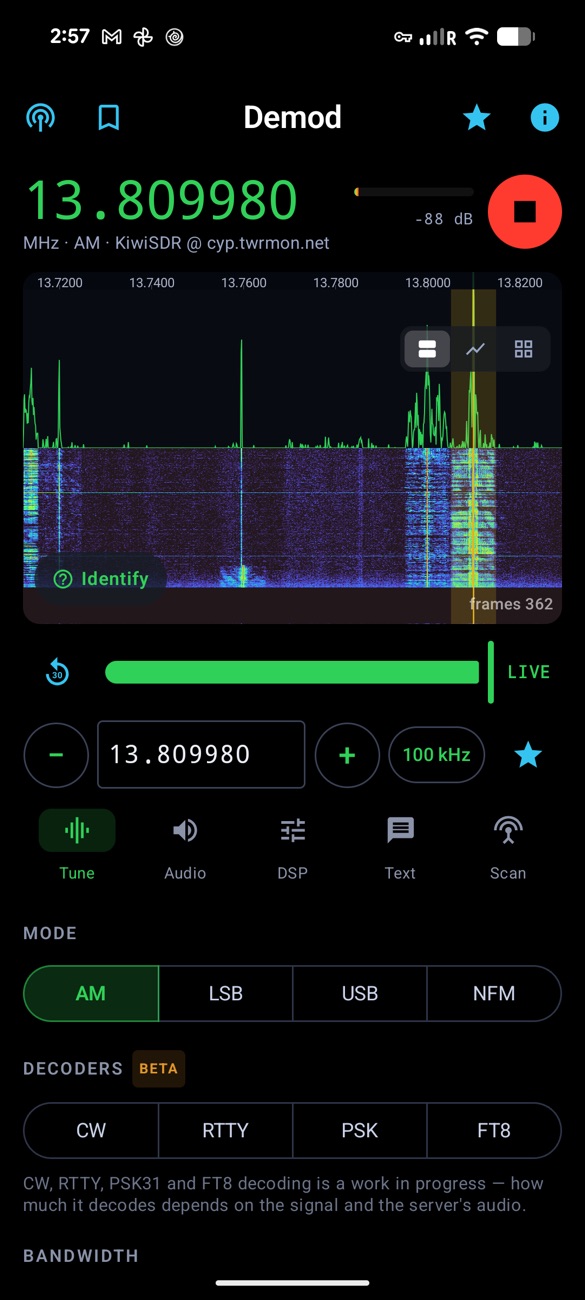
The round button beside the frequency connects (green ▶) and stops (red ■) at any time. Your server, frequency, mode and settings are remembered for next time.
2 Connecting to a receiver
In Connection → Connect manually, pick the source type, enter host:port, and tap Connect.
| Type | Port | What it is |
|---|---|---|
| KiwiSDR | 8073 | HF web receiver (0–30 MHz) — audio and waterfall come from the server. |
| SpyServer | 5555 | Airspy SpyServer — I/Q streamed to the phone and demodulated on it. |
| rtl_tcp | 1234 | An RTL-SDR dongle on a computer or Raspberry Pi — raw I/Q, demodulated on the phone. |
| OpenWebRX | 8073 | OpenWebRX web SDRs (HF, VHF, UHF) — audio and waterfall from the server; some have several bands. |
| USB SDR | — | A radio plugged straight into the phone (below). |
- Secure (TLS · wss) — for a KiwiSDR or OpenWebRX behind an HTTPS proxy
(usually port 443). You can also paste the receiver's full
https://address; the switch turns on by itself. - Recent servers lists where you've connected, newest first — tap to fill the field, ✕ to forget.
- The share icon shares the current receiver and tuning as a link (see Sharing).
rtl_tcp — RF Front End
Direct sampling (Off / I / Q) receives HF without an upconverter (Q suits an RTL-SDR v3). Upconverter: Ham It Up (125 MHz), SpyVerter (120 MHz) or Custom — then just tune the real frequency. Also RTL digital AGC and Frequency correction (ppm).
SpyServer stream
IQ sample rate (250k–2M) and Sample depth (8 / 16-bit). A warning appears if the server can't keep up in real time, or if its owner has locked the frequency (🔒) — then you can only tune within the window it streams.
USB SDR — a radio plugged into the phone
Supported: RTL-SDR (RTL2832U) and HackRF One. Plug the radio in with a USB-C OTG adapter, choose USB SDR, tap Connect, and allow USB access when Android asks. Plugging in a known radio can also open Demod for you. USB stations can be saved like any other, but aren't offered in Android Auto.
3 Public receivers & the map
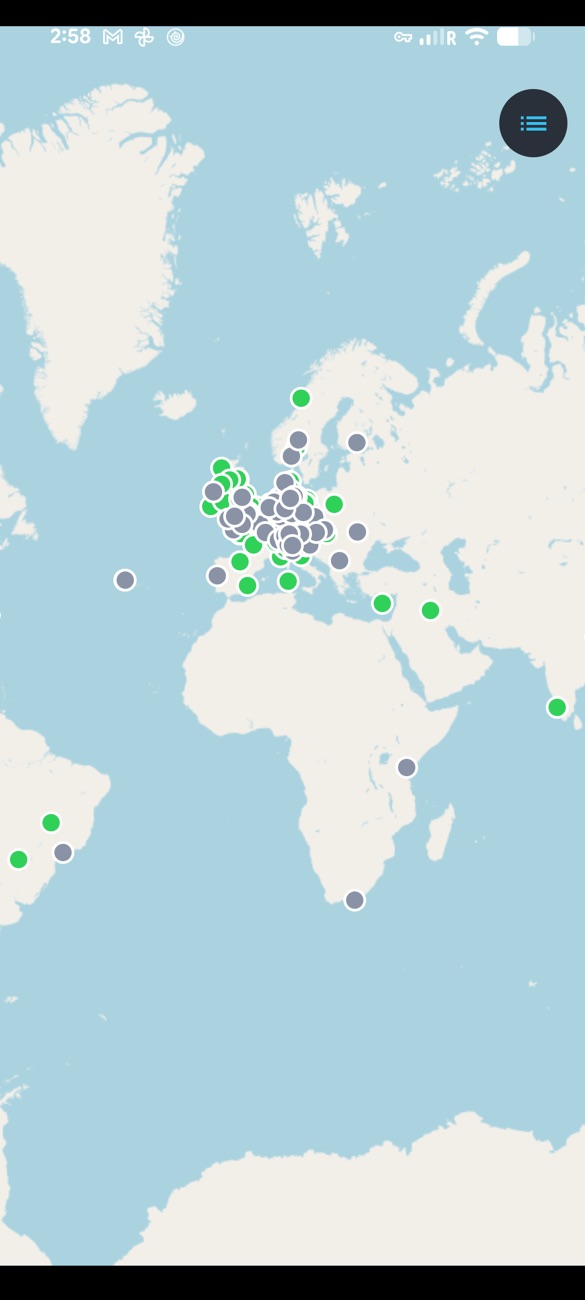
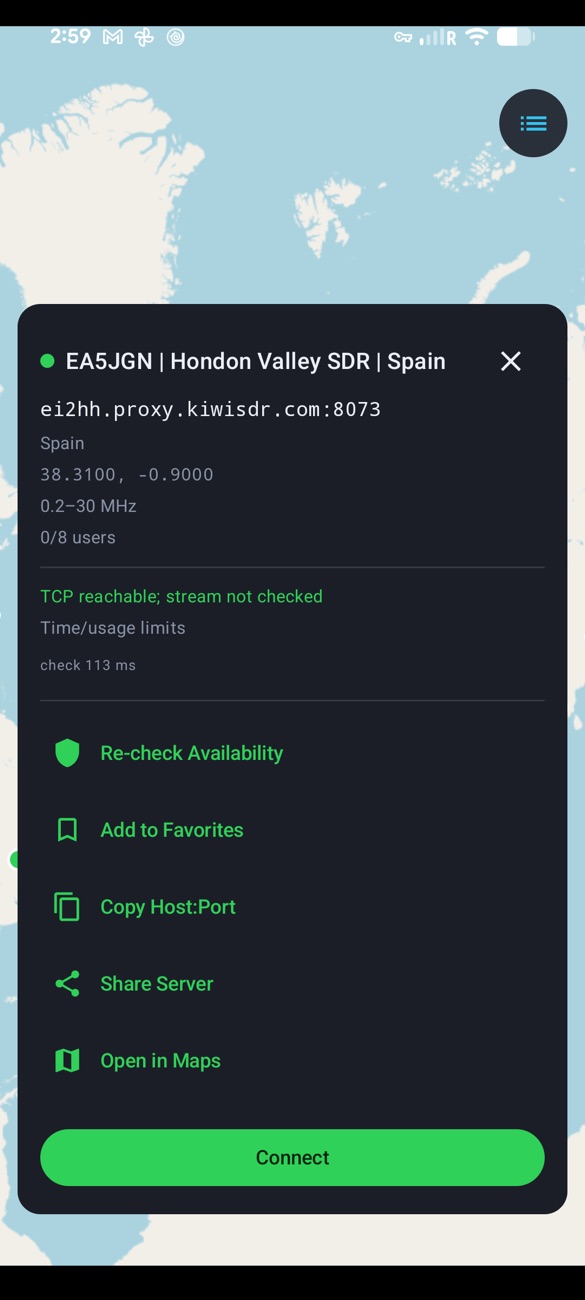
The KiwiSDRs, SpyServers and OpenWebRX buttons open a live directory of free public receivers. Tap one to connect.
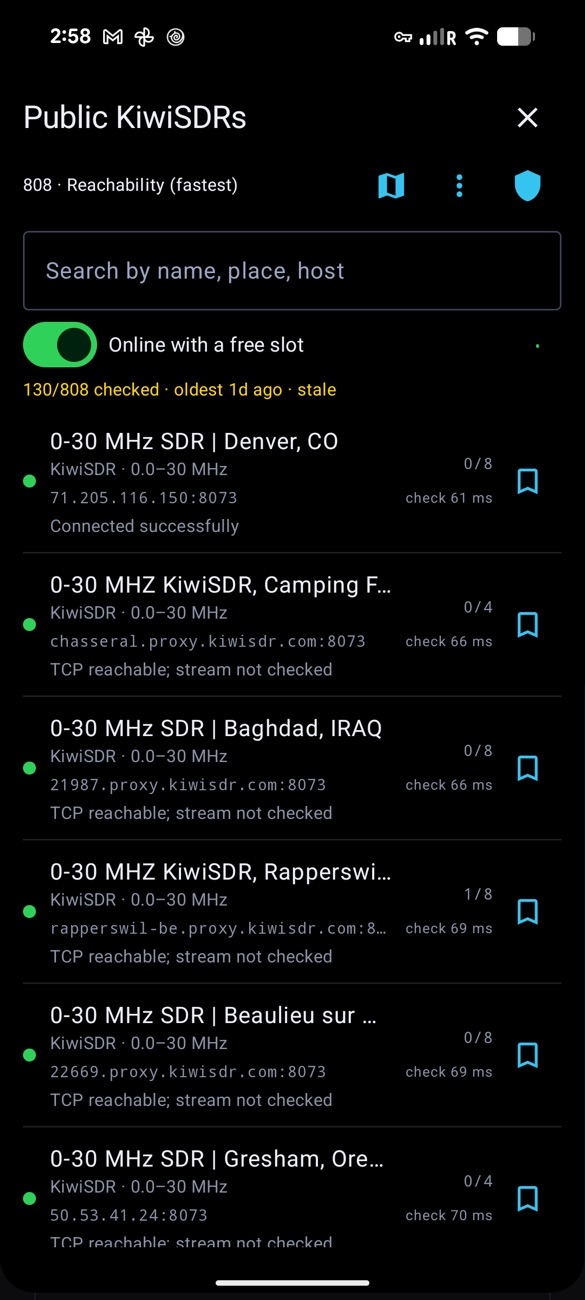
- Search by name, place, host, and keep Online with a free slot on to hide full or offline receivers.
- The ⋮ menu filters by coverage (HF, VHF, UHF, or covers your current frequency) and region, and sorts by Recommended, Fewest users, Reachability (fastest) or Name.
- Status dot: green reachable · yellow stale or caution · red busy, restricted or app-limited · blue checking · gray unknown/offline. The shield icon re-checks reachability.
- Tap the bookmark to save a receiver to your stations; long-press a row for Connect, Show on Map, Copy Host:Port and Re-check.
4 Tuning & the display
Under the frequency (MHz, six decimals) is a line with the mode, receiver and status, and a level meter. The switch at the top-right of the display chooses Split (spectrum over waterfall), Spectrum or Waterfall. The yellow band is the passband; a strip under the frequency scale labels the band you're in.
Gestures
| Gesture | What it does |
|---|---|
| Tap the display | Tune to that spot. |
| Drag (one finger) | Tune smoothly; finer when zoomed in. |
| Pinch / two-finger drag | Zoom around your fingers, and pan the zoomed view. |
| Double-tap | Toggle zoom between 1× and 8×. Tap the N× ✕ chip to reset. |
| Drag a digit of the big frequency | Scrub up/down; the digit you grab sets the step (MHz digits move fast, the last digits fine). |
When tuning moves the receiver's window, chevrons flash and the phone gives a small tap.
The tuning row
− and + step by the step size; type a frequency in the MHz field and press Done; the step button picks 1 kHz to 1 MHz (or Seek — see Seek); ★ saves the frequency as a memory.
Below the display, five tabs hold the controls: Tune, Audio, DSP, Text and Scan. On a tablet the controls sit beside the display, and on a large screen a third column lists your stations and memories.
5 Modes & decoders
The Tune tab has the MODE row (AM, LSB, USB, NFM, WFM), the DECODERS row BETA (CW, RTTY, PSK, FT8) and a BANDWIDTH slider. Each mode remembers its own bandwidth.
| Mode | Default width | Use |
|---|---|---|
| AM | 9.8 kHz | Broadcast, shortwave and airband voice. |
| NFM | 12 kHz | VHF/UHF two-way radio. |
| WFM | 200 kHz | FM broadcast (not on KiwiSDR, which is HF only). |
| USB / LSB | 2.7 kHz | Single-sideband voice — LSB usually below 10 MHz. |
| CW | 500 Hz | Morse, decoded on screen. |
| RTTY / PSK | 1.3 / 1.2 kHz | Radioteletype and PSK31, decoded. |
| FT8 | 3 kHz | Weak-signal digital, decoded in 15-second slots. |
CW / RTTY / PSK31
Text scrolls in a green strip under the display ("Listening for CW…" until it locks on). Long-press to copy, open the full-screen reader to copy or share, or Clear.
FT8
The FT8 · 15 s slots panel lists each slot's messages with SNR and audio frequency, a few seconds after the slot ends. CQ calls are green; tap a line to copy it.
Decoding is a work in progress: how much it decodes depends on the signal and the receiver's audio. FT8 needs your phone's clock to be accurate (it normally is).
6 Audio & DSP
- VOLUME
- Demod's own loudness (0–150%, independent of the phone volume); the speaker icon mutes.
- GAIN
- Auto (AGC) or a manual RF gain slider (not on OpenWebRX).
- AUDIO OUTPUT
- Shows where audio is playing; Change opens Android's output switcher (Bluetooth, speaker…).
- SQUELCH
- Mutes the audio when the channel is quiet (−90 to −10 dB) — handy on FM.
- MAINS-HUM NOTCH
- Removes 50 or 60 Hz hum; the default matches your region.
- NOISE REDUCTION
- Spectral noise reduction with a strength slider.
- NOISE BLANKER
- Clips impulse and electrical noise (SpyServer, rtl_tcp and USB radios).
- SIGNAL CORRECTION
- DC blocker, and IQ DC-offset removal to hide the centre spike on I/Q sources.
- WATERFALL CONTRAST
- Auto-adjusts colours to the noise floor; turn it off to set Floor and Ceiling yourself.
7 Band presets
On the Tune tab, BAND → Choose a band lists the bands your receiver can reach — broadcast, shortwave, amateur, aviation, marine and more. Tap one to land on it in the right mode. The plan follows the receiver's country automatically.
The tune icon opens Bands: choose a BAND PLAN by country or region, swipe a band right to edit or left to hide, Add a band of your own, or Restore built-in presets. Hidden bands stay under HIDDEN with a Restore button.
8 Identify
Tap Identify (bottom-left of the display) to ask "what is this signal?" Demod measures it on the phone and checks it against its band plan and broadcast schedules.
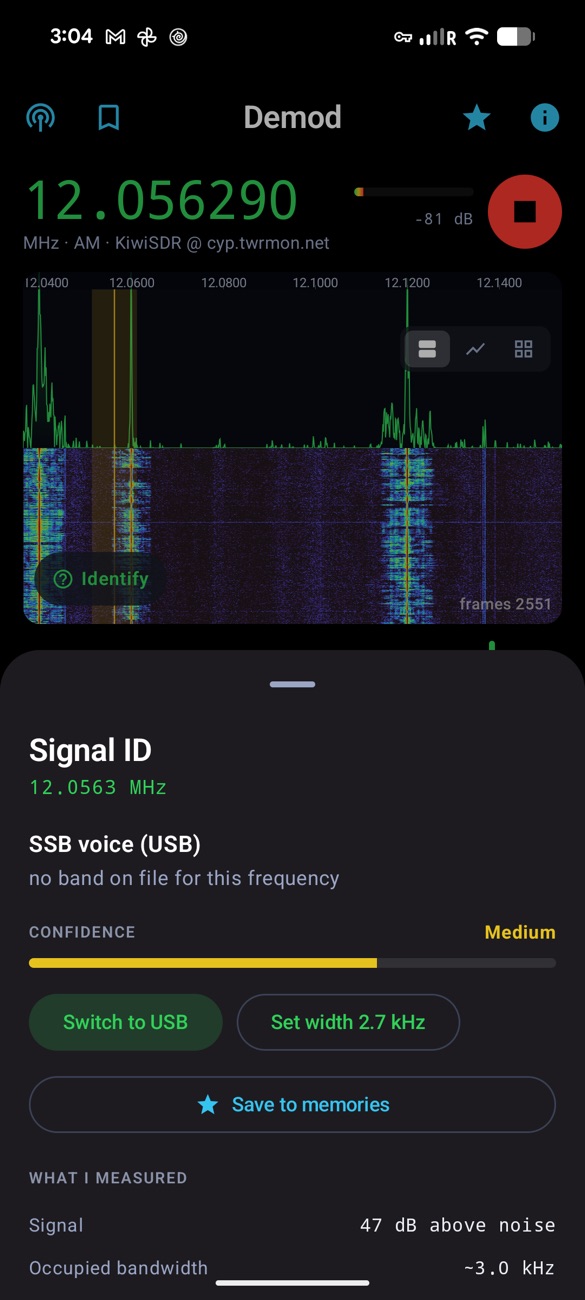
If the receiver's location is unknown, pick its ITU region (R1/R2/R3) under the result for better matches. Identify is also a launcher shortcut (long-press the Demod icon).
9 Live captions & translation
On the Text tab, turn on Transcribe speech to text (offline) BETA. The speech model for your language downloads once (watch the percentage), then captions of what the radio is saying appear live — all on the phone.
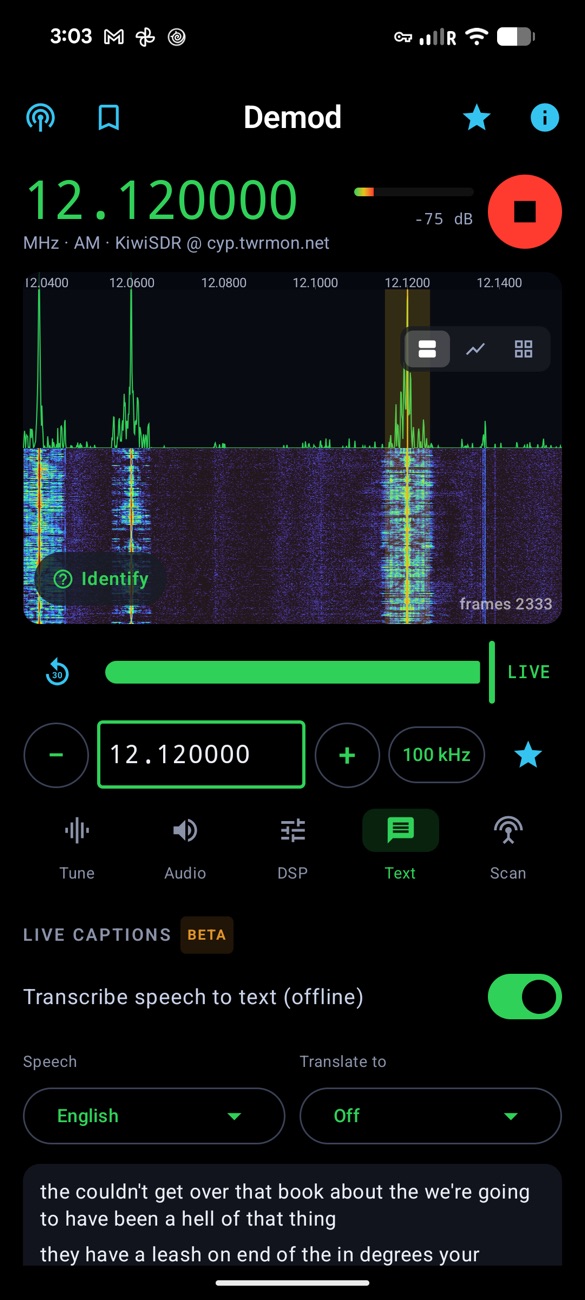
- Speech: 20 languages, including English, Spanish, Chinese, Russian, Japanese, German and French.
- Translate to: translation also runs on the phone (a language pack downloads the first time). Show Original, Translated or Both.
- Reader opens a full-screen transcript to copy or share; Saved keeps past transcripts.
Captions work best on clear AM or SSB voice. Demod transcribes the radio's audio — it never uses your microphone.
10 Scanner & Seek
The Scan tab finds activity for you:
- Memories — steps through your saved frequencies.
- Band — sweeps from Start MHz to Stop MHz at the chosen step.
- Smart — starts at your frequency and hops between signals it sees on the spectrum.
Set Sensitivity (and Smart level to ride the noise floor), then Start scan. It holds on a signal; use ‹ Skip ›, Pause/Resume or Stop scanning.
Seek Next update
Choose Seek in the step menu and −/+ jump down or up to the next signal that looks like the current mode — a real AM station, an SSB conversation, an FM channel — and stop there, like a car radio. Audio is muted while it sweeps. Inside a band it stays in that band and wraps around; press the other direction to cancel. In RTTY, PSK and FT8 the buttons simply step.
11 Time-shift & recording
While connected, Demod keeps the last 3 minutes of audio. The bar under the display has a Back 30s button and a slider to rewind; a yellow −Ns shows how far behind you are, and tapping LIVE jumps back to now.
On the Text tab, RECORD saves what you hear as an
.m4a file on the phone, including about 6 seconds from just before you tapped. If
captions were on, a transcript is saved with it. RECORDINGS lists them with
Transcript, Play, Share and Delete.
12 Stations & memories
The bookmark and star icons in the header open your saved lists.
Stations
A receiver plus its tuning. Save current station, or tap the bookmark in the public list. Tap to connect; rename, add a note, reorder or delete.
Frequencies (memories)
A frequency, mode and bandwidth — save with ★ in the tuning row. Tap to retune. Import CSV / Export CSV to move them between devices.
14 Background listening
Demod keeps playing with the screen off or while you use other apps, with a media notification and lock-screen controls (play/pause, stop, previous/next). Audio pauses if you unplug headphones, for a call, or when another app starts playing — press play to take it back.
- Today, previous/next step through your memories. Next update they seek, and headset buttons and the lock screen show the band and a live waterfall picture.
- Long-press the Demod icon for shortcuts: Identify this signal, and Listen in AM / USB / NFM.
- On Android 13 and later, allow notifications when asked so the playback controls appear.
15 Android Auto Next update
Demod appears in Android Auto as a media app. Browse Receivers (your saved network stations) and Memories, or say "play" and a station's name. The steering-wheel next/previous buttons seek, and Now Playing shows the frequency, the receiver and its country, the band, and a live waterfall.
On the road, Demod reconnects by itself after a dead zone or a dropped stream (up to 5 tries, and again as soon as the network returns), and never takes the audio back from another app you started. Pick a receiver before a memory — memories retune the connected receiver.
16 Tips & troubleshooting
- "No audio from KiwiSDR" / "busy or password-protected" / "is full" — public receivers are volunteer-run and have limited slots. Pick another, or turn on Online with a free slot.
- "App access limited — session ended" — that KiwiSDR limits listening time for apps. Reconnect later or choose another receiver.
- Connecting to your own server — make it listen on all interfaces
(e.g.
rtl_tcp -a 0.0.0.0), and use the computer's LAN or VPN address. - "Secure connection failed" — the receiver probably isn't behind HTTPS: turn
Secure off and use port 8073 (or paste its exact
https://address). - A "keeping up at N%" warning on SpyServer — lower the IQ sample rate or choose 8-bit samples.
- HF on an RTL-SDR — turn on Direct sampling (Q) or set your Upconverter.
- USB radio not found — use a USB-C OTG adapter, re-plug the radio, and allow access when Android asks.
- No notification controls — allow Demod's notifications in Android Settings → Apps → Demod.
17 Privacy & support
No accounts, no ads, no analytics from the developer. Captions, translation, Identify, decoding and recording all run on the phone, and Demod connects directly to the receivers you choose. On-device translation uses Google ML Kit, which contacts Google to download language packs. See the privacy policy.
Questions, bugs or ideas: digitalstructures@proton.me · demod-sdr.pages.dev · Demod on Google Play
Using an iPhone or iPad? See the iOS guide.